Integrations
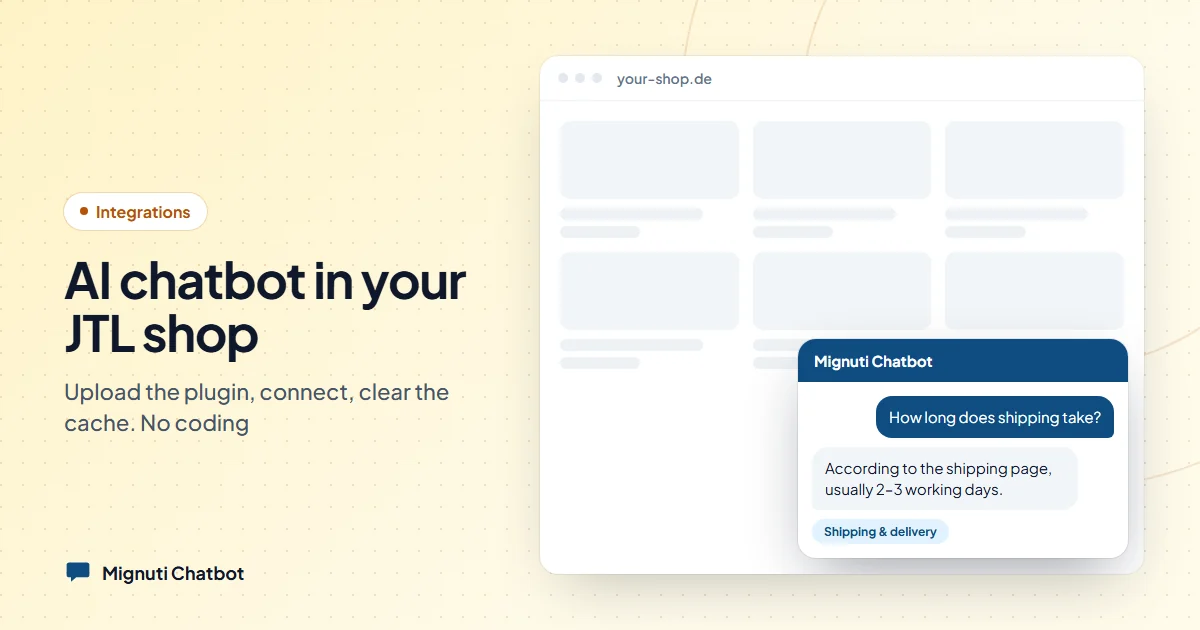
Add an AI chatbot to your JTL-Shop — in minutes
How to set up a GDPR-compliant AI chatbot in your JTL-Shop 5: install the plugin, connect, go live. Step by step, no coding.
Contents
Your customers keep asking the same things: “How long is shipping?”, “Can I return this?”, “Does it fit my model?”. Every question that isn’t answered right away is a potentially abandoned cart — or an email that lands in your inbox.
An AI chatbot trained on your own shop content answers exactly these questions around the clock. And in JTL-Shop 5 it’s embedded in minutes — no template editing, no developer.
Why a chatbot in your JTL-Shop?
- Less support load: recurring questions about shipping, returns and products run automatically.
- More conversion: an answer at the right moment makes a purchase more likely.
- Around the clock: nights and weekends too, when your team is offline.
Important for the European market: the bot should run GDPR-compliant from the EU and only engage the visitor after consent. That’s exactly what Mignuti Chatbot brings.
First: create an account + project
Before you set up the plugin, you need a Mignuti project:
- Sign up at app.mignuti.com (free, no credit card).
- Create a project and add your content (website/PDFs) — that’s what the bot answers from.
- In the project, open Embed in the left menu — you’ll find your project ID (
prj_…) and secret there. You’ll need them for the plugin.
Step by step
1. Download the plugin
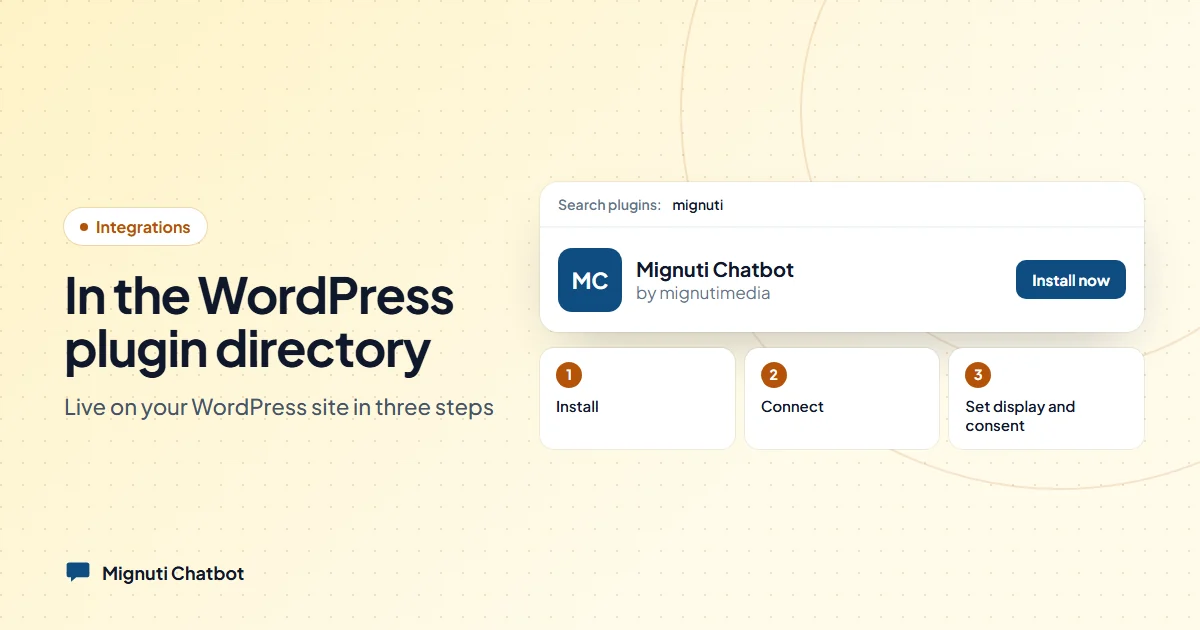
Download the Mignuti Chatbot plugin for JTL-Shop as a ZIP.
2. Upload it in the plugin manager
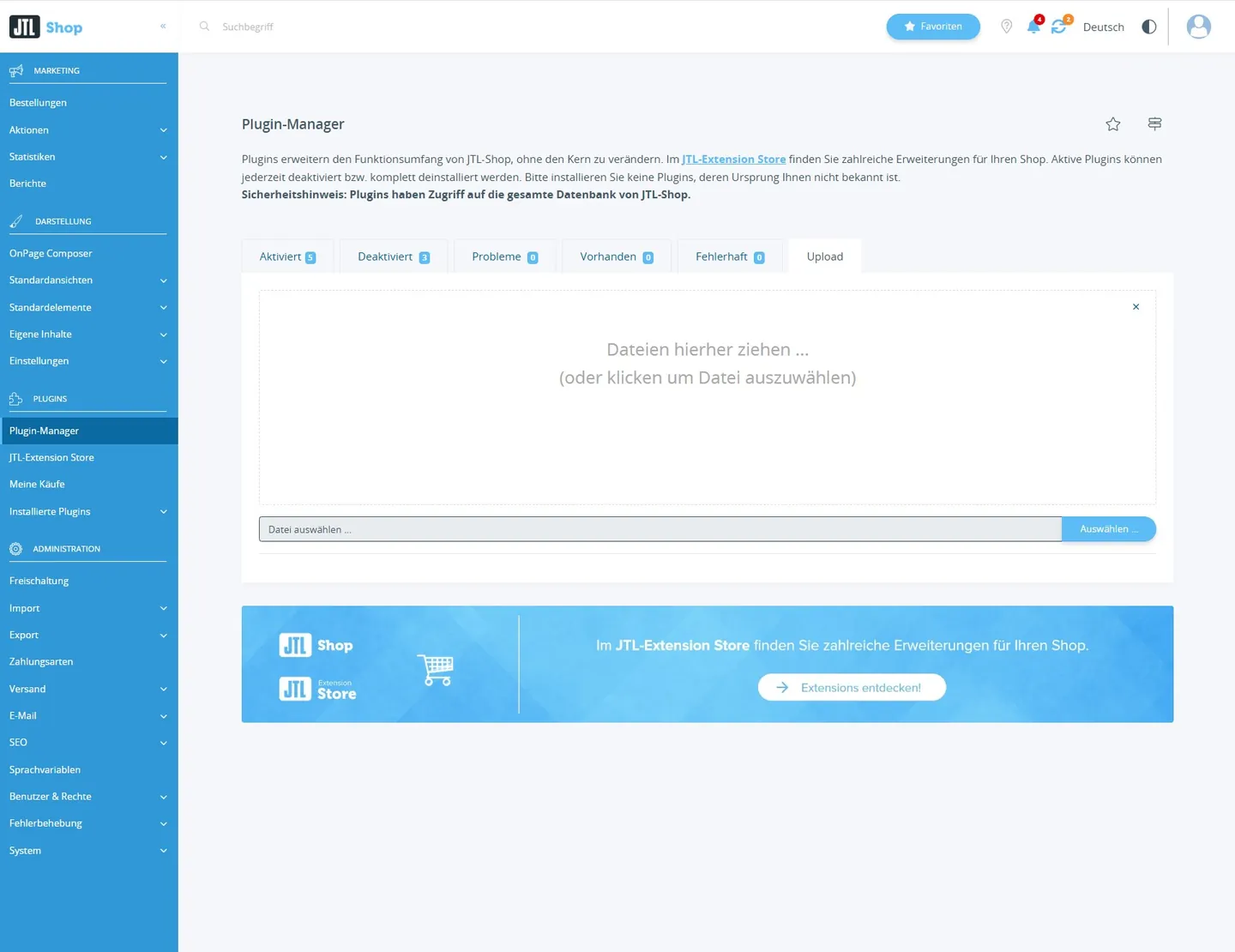
In the shop admin: Plugins → Plugin manager → Upload, pick the ZIP, install and activate. No access to templates or code needed.
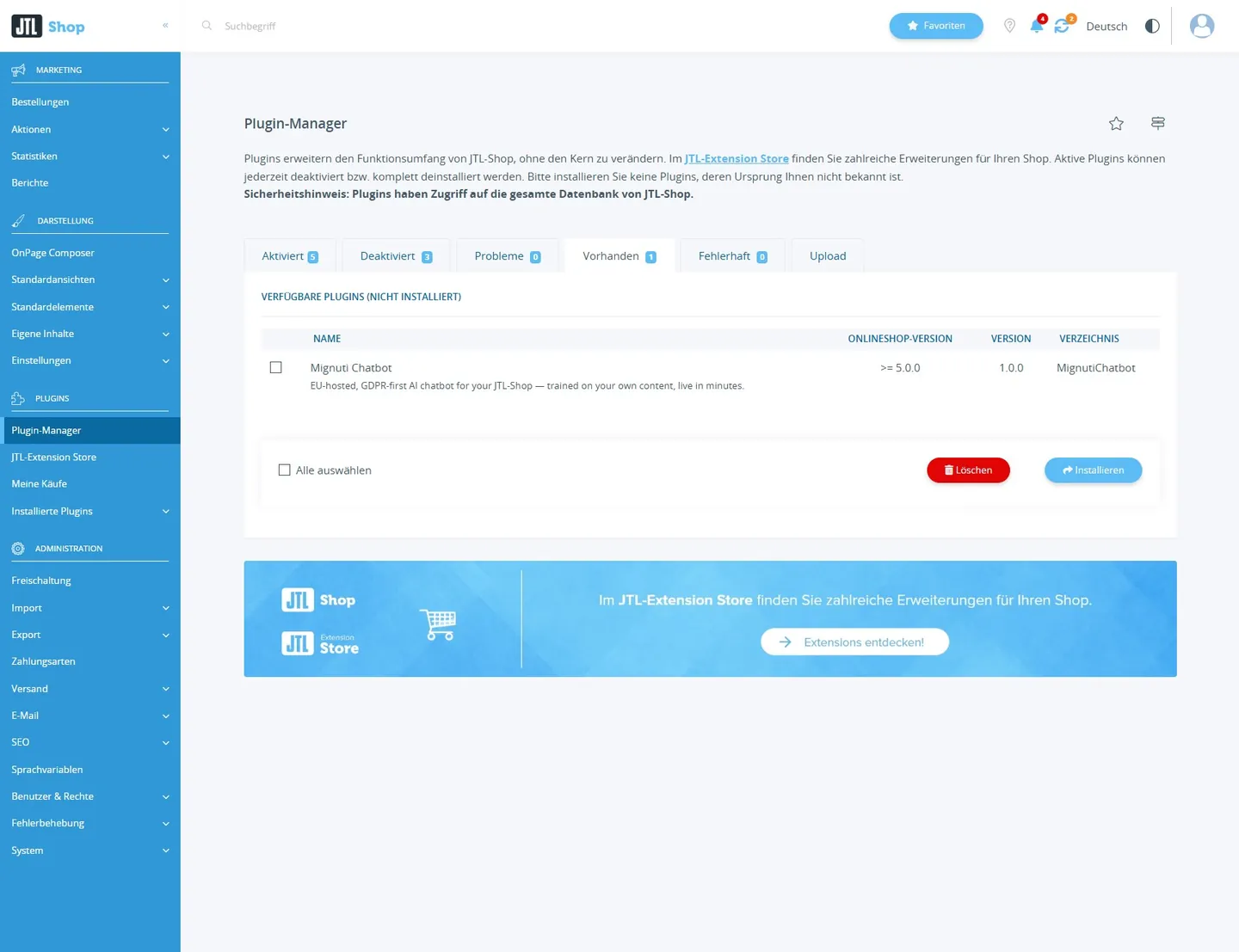
The plugin then appears under “Vorhanden” (Available) — click Installieren (Install).
3. Connect
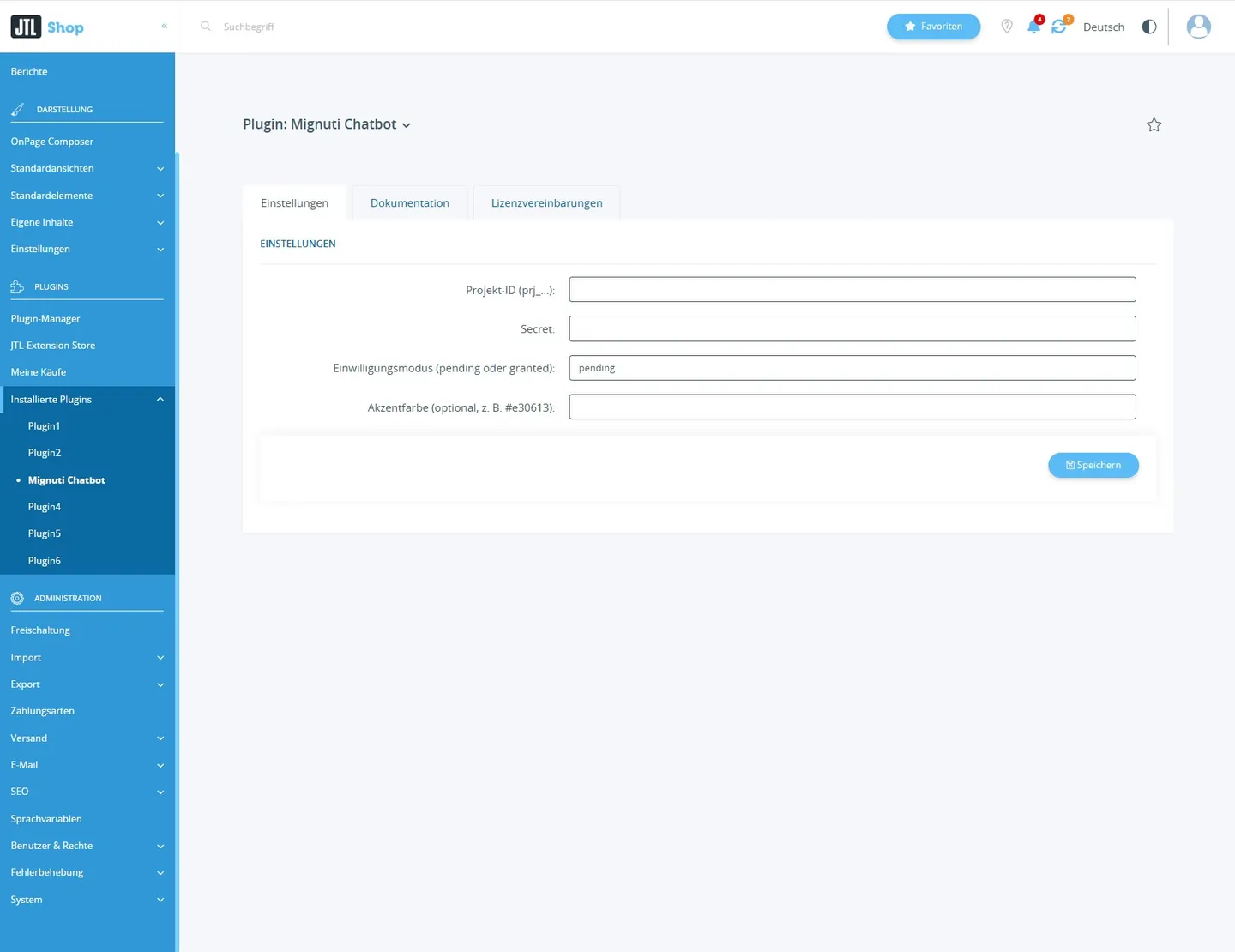
Open Plugins → Mignuti Chatbot → Settings and enter your project ID and secret — both are in the Mignuti admin under Embed. Pick the consent mode (GDPR-safe is the default).
4. Clear the cache — the most important step
Right after saving you must clear the JTL cache, otherwise the chat won’t appear. Here’s the exact spot in the shop admin:
System → Cache → Management, then at the bottom:
- “Clear entire object cache”
- “Clear entire template cache”
Then reload the storefront — the chat appears on every page.
GDPR: built in, not bolted on
Mignuti Chatbot is hosted in Germany and shows its own EU AI Act consent gate before the first chat, so you do not need an extra cookie banner. To be straight about it: platform data (database, files) stays on our server in Germany, but for the AI answer the messages go – after automatic redaction of personal data – to Anthropic in the USA (EU standard contractual clauses 2021/914). If you do not want that, switch on EU-only mode per bot (Azure OpenAI EU).
Trained on your shop
The bot invents nothing — it answers only from your own content (product descriptions, shipping and returns pages, FAQ). Feed it your pages once, and it handles the rest.
Ready? Get the JTL-Shop plugin → or create a free account and go live in minutes.
Your own chatbot, built from your content
Add your website, upload PDFs or connect a folder. The bot answers only from your sources. Try it free for 7 days.